

Lost the Remote Manual? TV & Universal Remote Codes + Setup Guide
This post may contain affiliate links. We may earn a small commission at no extra cost to you. Affiliate Disclosure.
Bought a used TV? Found an old universal remote in a drawer? Lost the instruction sheet years ago?
You’re definitely not the only one searching for “what code makes this stupid remote work?”
We’ve pulled together setup instructions and remote codes for TVs, DVD/Blu-ray players and universal remotes. Bookmark this page — because the manual always seems to disappear right when you need it.
Jump to Remote Codes:
- Clean Remote Codes
- Basic Remote Control Setup
- Universal Jumbo Remote Codes
- Samsung Blu-ray Player Codes
- Hisense TV Remote Codes
- Mitsubishi TV Remote Codes
- Sylvania Remote Codes
- Craig TV Remote Codes
- RCA Universal Remote Codes
- LG Blu-ray Player Codes
- Panasonic TV Remote Codes
- Haier TV Remote Codes
- Samsung TV Remote Codes
Clean Remote Codes
Clean Remote is a brand of remote controls commonly used in hotels, hospitals and healthcare facilities. Depending on the model, a Clean Remote may use a simple setup or code-search process instead of requiring you to manually enter a traditional universal remote code.
Setting Up a Clean Remote
- Remove the battery compartment cover.
- Insert the required AAA batteries, making sure they are correctly oriented.
- Turn on your TV.
- Point the Clean Remote directly at the TV.
- Follow the setup or code-search instructions for your particular Clean Remote model.
- Test the Power, Volume and other buttons to make sure the remote is working correctly.
If the remote doesn’t operate your TV, try the setup process again or check the instructions for your specific Clean Remote model.
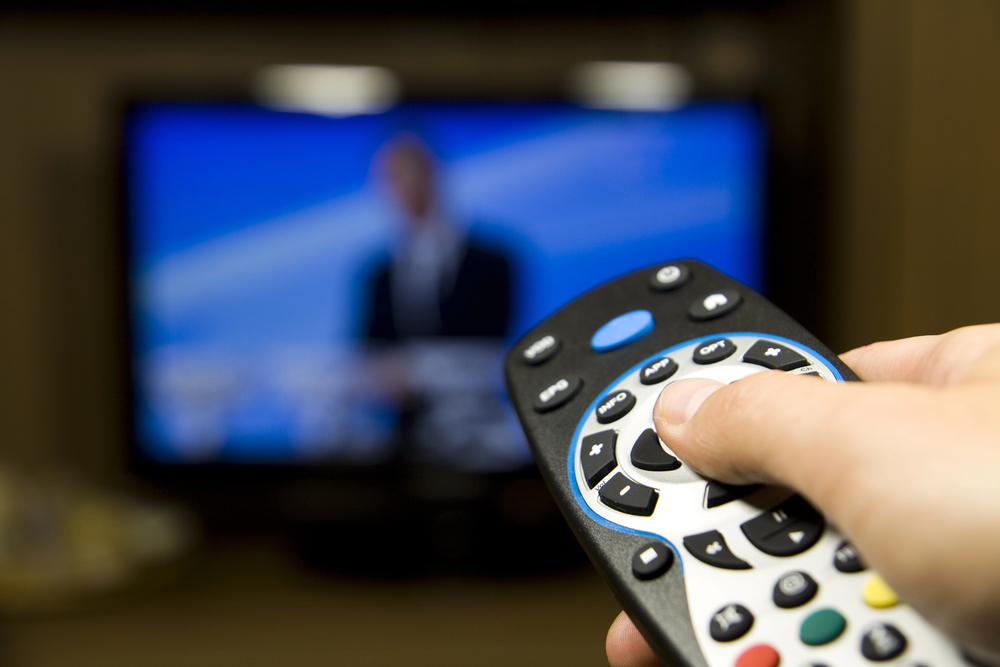
Basic Remote Control Setup
Sometimes you don’t need a specific code. Many universal remotes include a code-search feature that can find a compatible code for your TV automatically.
- Check the batteries: Start with fresh batteries and make sure they’re installed correctly.
- Turn on your TV: Manually turn on the TV or other device you want to control.
- Find the Setup or Code Search button: Depending on the remote, this may be labeled Setup, Code Search or something similar.
- Try the manufacturer’s code: If you have a code list for your remote, enter the code listed for your TV brand.
- Try Code Search: If you don’t know the code, use the remote’s automatic code-search function if available.
- Test everything: Once the TV responds, test Power, Volume, Input and other important buttons.
Quick tip: Universal remote codes aren’t truly universal. The correct code can depend on both your TV and the brand and model of universal remote you’re using.
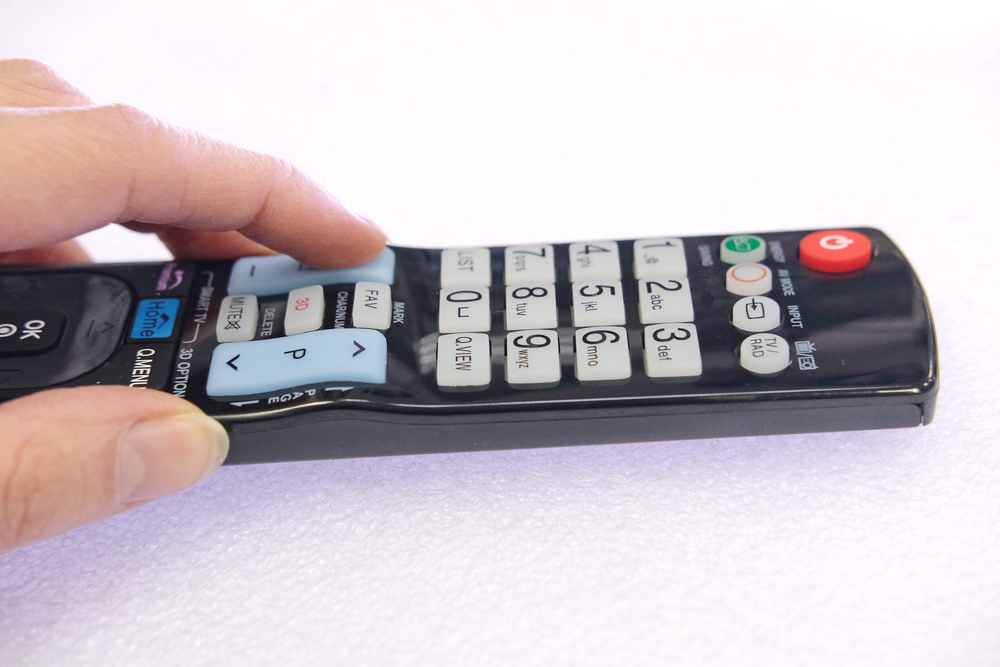
Universal Jumbo Remote Codes
Programming a universal jumbo remote usually involves entering a code for the device you want to control. Because there are several brands and models of jumbo remotes, the exact process can vary.
- Turn on the device: Manually turn on the TV, DVD player or other device.
- Enter programming mode: Look for a Setup or Code Search button. Follow the instructions for your particular remote.
- Locate the code: Check the code list included with your remote for your TV or device brand.
- Enter the code: Use the number buttons on the remote to enter the appropriate code.
- Test the remote: Try Power, Volume, Channel and Input.
- Try another code: Many brands have several possible codes. If the first doesn’t work correctly, try another.
- Use Auto Search: If you can’t find the correct code, check whether your remote offers an automatic code-search feature.
Samsung Blu-ray Player Remote Codes
Here are some common remote codes that may work with Samsung Blu-ray players:
- 0045
- 0199
- 12051
- 21075
- 21044
- 20820
- 20045
- 01982
- 20573
- 20199
Codes vary by universal remote, so if these don’t work, check the code list for your particular remote model.
Programming a Universal Remote for a Samsung Blu-ray Player
- Turn on the Samsung Blu-ray player.
- Point the universal remote toward the player.
- Press and hold the Setup or Code Search button according to your remote’s instructions.
- Enter one of the Samsung Blu-ray codes.
- Test Power, Play, Pause and Menu.
- If the player doesn’t respond correctly, repeat the process with another code.
Universal Remote Codes for Hisense TVs
Universal remote codes for Hisense TVs vary depending on the brand and model of remote you’re using. Here are some commonly used codes to try:
- 1170
- 0073
- 0821
- 1678
- 1680
- 2001
- 2006
- 2017
- 2098
- 2119
- 2352
- 2371
- 3008
- 3133
- 3192
- 3201
- 3220
- 3581
- 3743
- 3997
Programming a Universal Remote for a Hisense TV
- Turn on your Hisense TV.
- Point the universal remote toward the TV.
- Press and hold Setup or Code Search according to your remote’s instructions.
- Enter one of the codes above.
- Test the Power and Volume buttons.
- If it doesn’t work, repeat the process with another code.
If these codes don’t work, check the manual or manufacturer’s website for your specific universal remote. Different remotes can use different code sets for the same TV.
Universal Remote Codes for Mitsubishi TV
Universal remote codes for Mitsubishi TVs can vary depending on the brand and model of universal remote you’re using. Here are several common codes to try:
- 0150
- 0093
- 1250
- 0051
- 0156
- 0178
- 0159
- 0191
- 0137
How to Program the Remote
- Turn on your Mitsubishi TV.
- Press and hold the Setup button on your universal remote until the indicator light comes on.
- Enter one of the Mitsubishi TV codes above.
- Test Power, Volume and other functions.
- If the remote doesn’t work correctly, repeat the process using another code.
If none of these work, check the code list for the exact brand and model of your universal remote.
Sylvania Universal Remote Codes
The correct code for a Sylvania TV depends on the universal remote you’re using. Here are some common codes to try:
- 0054
- 0030
- 0020
- 0096
- 0171
- 0623
- 0695
- 1191
- 1914
- 1963
How to Program a Sylvania TV
- Turn on your Sylvania TV.
- Press and hold the Setup or Code Search button.
- Enter one of the codes above.
- Test Power, Volume and other functions.
- If it doesn’t work, try another code.

Craig TV Remote Codes
The remote codes for Craig TVs can differ depending on the brand and model of universal remote you’re using. Here are several common codes that may work:
- 10180
- 10178
- 1173
- 1179
- 1203
- 1259
- 1291
- 1313
- 1357
- 1390
How to Program a Craig TV
- Turn on your Craig TV.
- Press and hold the Setup or Code Search button on your universal remote.
- Enter one of the codes above.
- Test Power, Volume and other functions.
- If it doesn’t work, try the next code.
If none of these codes work, check your universal remote’s manual or manufacturer’s website for its complete code list.
RCA Universal Remote Codes
RCA universal remote codes vary depending on the model of the remote and the device you’re trying to control.
Common RCA TV Codes
1004, 1005, 1006, 1010, 1013, 1014, 1025, 1078, 1081, 1082, 1083, 1116, 1123, 1124, 1181, 1189, 1196, 1202, 1242, 1276, 1379, 1381, 1383, 1480
Common RCA DVD Codes
20522, 20571, 20717, 20821, 20874, 21068, 21129, 21431, 21616, 21621
Common RCA VCR Codes
20035, 20042, 20081, 20130, 20132, 21121, 21268, 21431, 21593
How to Program an RCA Universal Remote
- Turn on the device you want to control.
- Put the remote into programming mode according to the instructions for your RCA remote model.
- Select the appropriate device, such as TV or DVD.
- Enter a code for your device.
- Test Power, Volume and other functions.
- If it doesn’t work, repeat the process with another code or use the remote’s code-search feature.
Universal Remote Codes for LG Blu-ray Players
The universal remote codes for an LG Blu-ray player can vary depending on the model of universal remote you’re using. Common codes include:
- 615
- 673
- 824
- 899
How to Program an LG Blu-ray Player
- Turn on your LG Blu-ray player.
- Press and hold Setup or Code Search on the universal remote.
- Select DVD or Blu-ray mode if your remote requires it.
- Enter one of the codes above.
- Test Play, Pause, Stop and Menu.
- If it doesn’t work, repeat the process with another code.
Remote Codes for Panasonic TVs
The correct Panasonic TV code depends on the universal remote you’re using. Here are several common codes:
- 1003
- 1010
- 1049
- 1053
- 1096
- 1123
- 1152
- 1231
- 1289
- 1292
How to Program a Panasonic TV
- Turn on your Panasonic TV.
- Press and hold Setup or Code Search on your remote.
- Select TV mode if required.
- Enter one of the Panasonic codes above.
- Test Power, Volume and Channel controls.
- If it doesn’t work, try another code or use your remote’s code-search feature.
Haier Remote Codes
Remote codes for Haier TVs can differ depending on the universal remote model. Here are several common Haier TV codes:
- 0081
- 0216
- 0217
- 0157
- 0154
- 0179
- 0178
- 0036
- 0623
How to Program a Haier TV
- Turn on your Haier TV.
- Press and hold Setup or Code Search on the universal remote.
- Select TV mode if required.
- Enter one of the codes above.
- Test Power, Volume and Channel controls.
- If the TV doesn’t respond, try another code or use the remote’s automatic code-search feature.
Universal Remote Codes for Samsung TV
To program a universal remote control for a Samsung TV, you can typically use one of two methods: manual code entry or code search. The correct codes depend on the specific universal remote you have.
Code Entry Method
- Turn on the Samsung TV: Make sure your TV is on.
- Find the Samsung codes: Look up Samsung TV in the code list that came with your universal remote. Each universal remote brand can use a different set of codes.
- Enter programming mode: Press and hold Setup or Code Search according to your remote’s instructions.
- Enter the code: Type in one of the Samsung TV codes listed for your particular remote.
- Test the remote: Point it at the TV and test Power, Volume, Channel and Input.
- Try another code if needed: A code may control Power but not every other function, so test several buttons before you’re done.
You can also check Samsung’s universal remote setup instructions.
Code Search Method
- Turn on the Samsung TV.
- Activate Setup or Code Search mode on your universal remote.
- Select TV mode if your remote requires it.
- Follow your remote’s instructions to cycle through available codes.
- When the TV responds, save the working code.
- Test Volume, Channel and Input as well as Power.
Important: There isn’t one remote code that works with every universal remote. If the codes on this page don’t work, look for the model number of your remote — usually on the back or inside the battery compartment — and check the manufacturer’s code list.
Looking for more freebies? We’ve got tons of FREE magazines, kids freebies, samples, activities and more you can grab! Check back often—we’re always adding new ones.